On the Binance website, go to Assets, then Asset History, hover over the export icon and choose Export Transaction Records. Pick a date range (use Customize for anything longer than six months), click Generate, and download the file when it's ready. That statement lists every change to your balance across Spot, Funding and Earn, which is what tax software needs. Ask for one calendar year per file, and download it within seven days, because the link expires.
Which Binance export to use for taxes
Binance also offers spot order history, trade history, deposit history and withdrawal history. Each shows one slice. Import them separately and the same trade can appear twice while deposits go missing. The transaction records export lists every balance change, one change per row, in one file.
How to export Binance transaction history
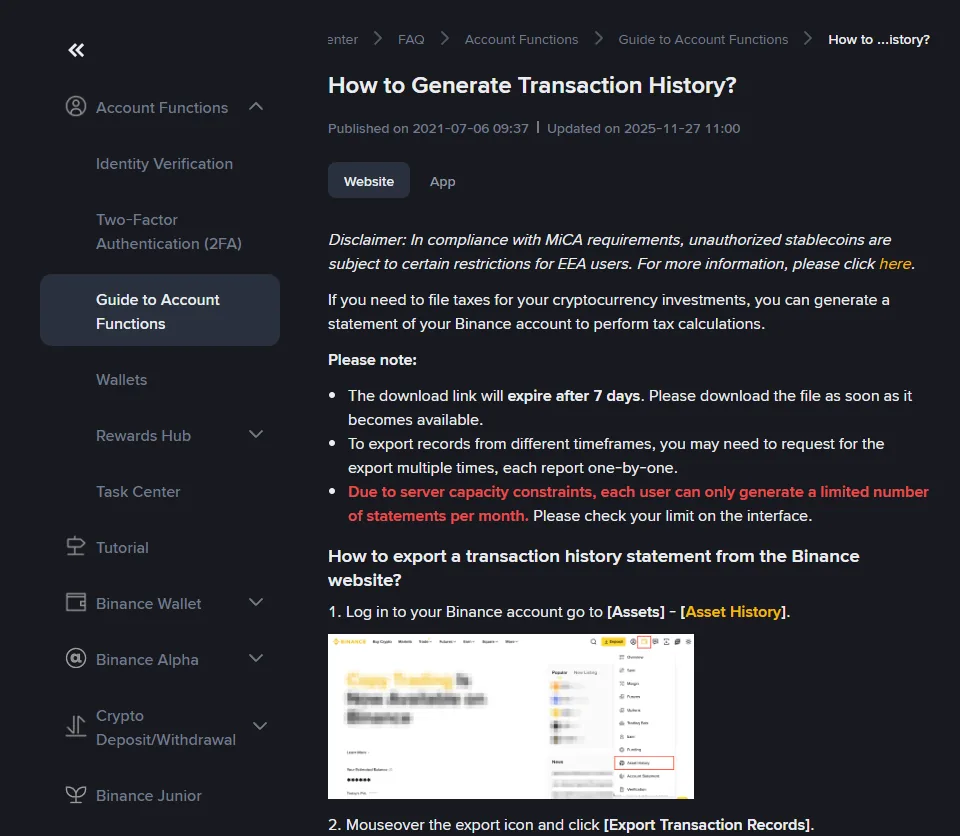
- Log in on the website. The app has a download for trade history, but the full statement is easier to request on the web.
- Open Assets, then Asset History.
- Hover over the export icon and click Export Transaction Records.
- Choose the period. Presets cover up to six months; for a full year, click Customize and enter 1 January to 31 December (or your own tax year).
- Choose the account, sub-account and coins (all of them, unless you have a reason to narrow it), then click Generate.
- Wait for the status to change, then download. Binance sends an email or SMS when the file is ready; if nothing arrives, check back in an hour or two.
- Repeat for each year you've held an account, and keep the files together in one folder.
Two limits to plan around. Each user can only generate a limited number of statements per month (Binance's help page puts it between 15 and 40, and the export screen shows your own limit), so don't waste requests on small date ranges. And the download link expires after seven days.
Binance transaction history CSV columns explained
Binance doesn't publish a column list, but the first line of current files, as read by open-source tax tools, names these columns:
| Column | What it holds |
|---|---|
| User_ID | Your account number. Leave it in; it isn't used for tax. |
| UTC_Time | When the balance changed, in UTC. Your tax software converts to your time zone. |
| Account | Which part of your balance changed: Spot, Funding, Earn and so on. |
| Operation | What happened, for example Deposit, Withdraw, Transaction Buy, Transaction Spend, Transaction Fee, Simple Earn Flexible Interest or Binance Convert. |
| Coin | The asset whose balance changed. |
| Change | How much it changed. Negative means it left that balance. |
| Remark | Occasional extra detail, often empty. |
A single trade shows up as two or three rows with the same timestamp: the coin you gave up (negative), the coin you received (positive) and the fee. Tax software has to stitch those rows back together. When two different trades happen in the same second, some tools pair the rows wrongly; our CSV converter refuses to guess in that case and lists the rows so you can check them.
Rows that trip people up
Moves between Spot, Funding and Earn. Operations such as "Transfer Between Main and Funding Wallet" are internal moves, not sales. Most tax software recognizes them; if yours shows them as disposals, remove them before import. Our converter skips them and tells you how many it skipped.
The move from Funding to Spot. From 29 September 2026 Binance is moving the crypto held in Funding accounts into Spot, a process it expects to finish in January 2027; after that the Funding account only settles stock trades. The moves are between your own accounts, not sales. If you see unfamiliar transfer rows dated from late September 2026, this is the likely reason; if our converter lists them as unrecognised, leave them out of your tax import.
Small-balance conversions to BNB. The operation is called "Small assets exchange BNB": several tiny balances go out and one BNB amount comes in at the same moment, which doesn't map neatly to a single trade. Our converter leaves these rows out and lists them in its report; enter them in your tax software by hand.
Coins that arrived from elsewhere. The file shows the deposit but not what you paid for the coin on the other platform. Import that platform's history too, or your software will warn about missing cost basis.
P2P purchases. On P2P the rupees or shillings go straight from your bank or mobile wallet to the seller, never through Binance, so the amount you paid isn't in this file. Keep your P2P order history (or a note of the price you paid) if your country's rules need the cost in local currency.
Turning the CSV into a Koinly or CoinLedger import
Run the file through the CSV converter to get a Koinly or CoinLedger import, or straight into the cost basis calculator to see your gains by year. If you don't have an account yet, the Binance sign-up guide covers eligibility and verification.
What this is based on: Binance's help article "How to Generate Transaction History?" (updated 27 November 2025), checked on 6 October 2026. Menu names change from time to time; if a step doesn't match what you see, search the help center for "generate transaction history".